
PSA!!! Some Helpful Tips For iPadOS 26
A couple tips for navigating the big changes coming in iPadOS 26.

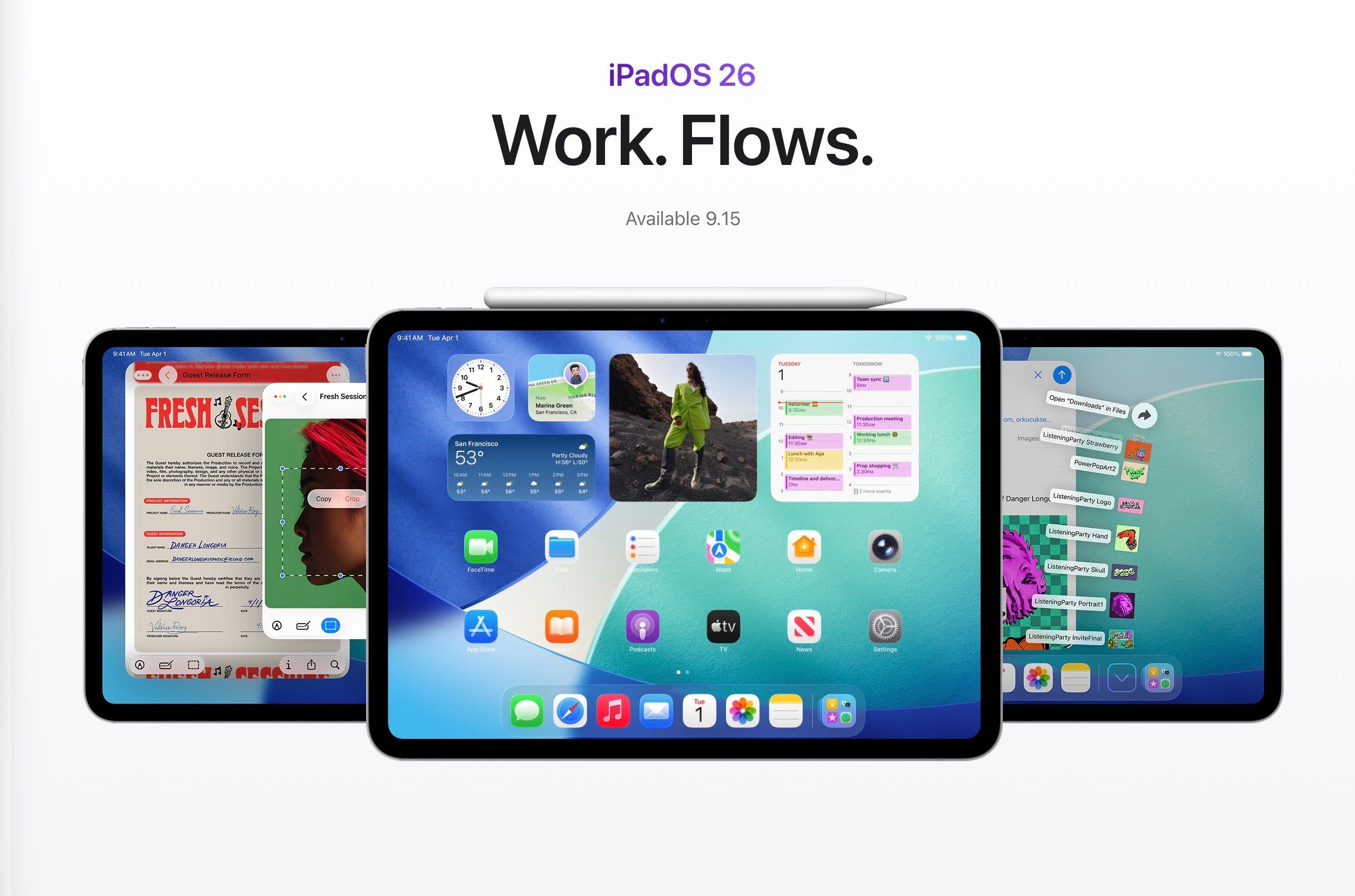
With the public release of iPadOS 26 right around the corner, I decided to round up a couple of the tips and tricks I discovered while testing the betas over the summer. Apple does a good job of explaining many of the biggest changes with the popups that appear when you install iPadOS 26 for the first time, and additional details can be found in the Tips app, but there are a few more niche things I had to figure out for myself. So hopefully a few of these suggestions will be helpful.
Using Quick Look in the Files app for previewing photos or other files by default.
When I first began testing the iPadOS 26 developer beta, I realized that the Preview app effectively replaces Quick Look by default. Now, by default when you tap on a file, it automatically opens in Preview rather than Quick Look. While this can have its benefits for some use-cases, it can also have its downsides. Quick Look, for example, allows users to scroll through all of the photos in a folder, more akin to a gallery view. Preview, however, seems to only allow a user to preview one file at a time, which limits its functionality when it comes to scrolling through images in a folder. So if you miss opening files in Quick Look by default with a single tap, there’s a solution.
If you hold and press on a file, like an image in the Files app, in iPadOS 26, there’s a new option labeled “Open With”. This allows users to choose from a list of compatible apps to open this file type by default, just like on a Mac. And at the bottom of this menu, there’s a separated option labeled “Preview With Quick Look”. Toggling this option will change the default setting to open that file type in Quick Look by default. So for example, if I select an image and toggle this option, images will open in Quick Look when clicked or tapped by default, as they did in prior versions of iPadOS.
And the beauty of this system is that this setting can be toggled on a per-file type basis. So, say I want to view images in Quick Look by default, but PDF documents in Preview, I can toggle the settings for these file types separately. I can choose to open images in Quick Look by following the above process, and I can choose to open PDFs by just selecting the Preview app in the same menu when right-clicking or hold-pressing on a PDF.
SlideOver is Gone in iPadOS 26, but Multi-Windowing can Replicate Similar Functionality.
With the introduction of iPadOS 26’s brand-new multitasking system, SlideOver has been cut. For those used to using SlideOver, there isn’t a one-to-one replacement per se, but users can use the new multi-windowing system to stack app windows to replicate similar functionality. The Exposé feature makes it simple to access all of the app windows in the stack, and so an app window can pretty readily be surfaced to the top of the window stack, kind of like SlideOver. Users can also quickly surface an app window by tapping the app’s icon in the App Dock. While this isn’t an exact replacement for SlideOver, it provides a similar level of utility, while also providing more flexibility in many ways that the old SlideOver feature didn’t provide.
To enable the new multi-windowing system in iPadOS 26, users can go to the Settings app, open “Multitasking & Gestures,” and select “Windowed Apps” or “Stage Manager.” Windowed Apps provides an experience more like on traditional macOS or Windows, with a single workspace users can stack app windows in. Meanwhile, Stage Manager provides the same familiar stage-based organization structure, but now without the 4 app per stage limit. So, Stages now act very similar to virtual desktops on macOS for creating several separate workspaces.
Conclusion
These are a couple of the more niche changes coming to iPadOS 26, but I hope these tips will make the transition from iPadOS 18 to iPadOS 26 a little bit smoother.
My household is sticking with iOS and iPadOS 18 — 26 is far too incomplete and visually ick.