
iPad As a Smart Display
How I turned my spare iPad 11th Gen. into a smart display.

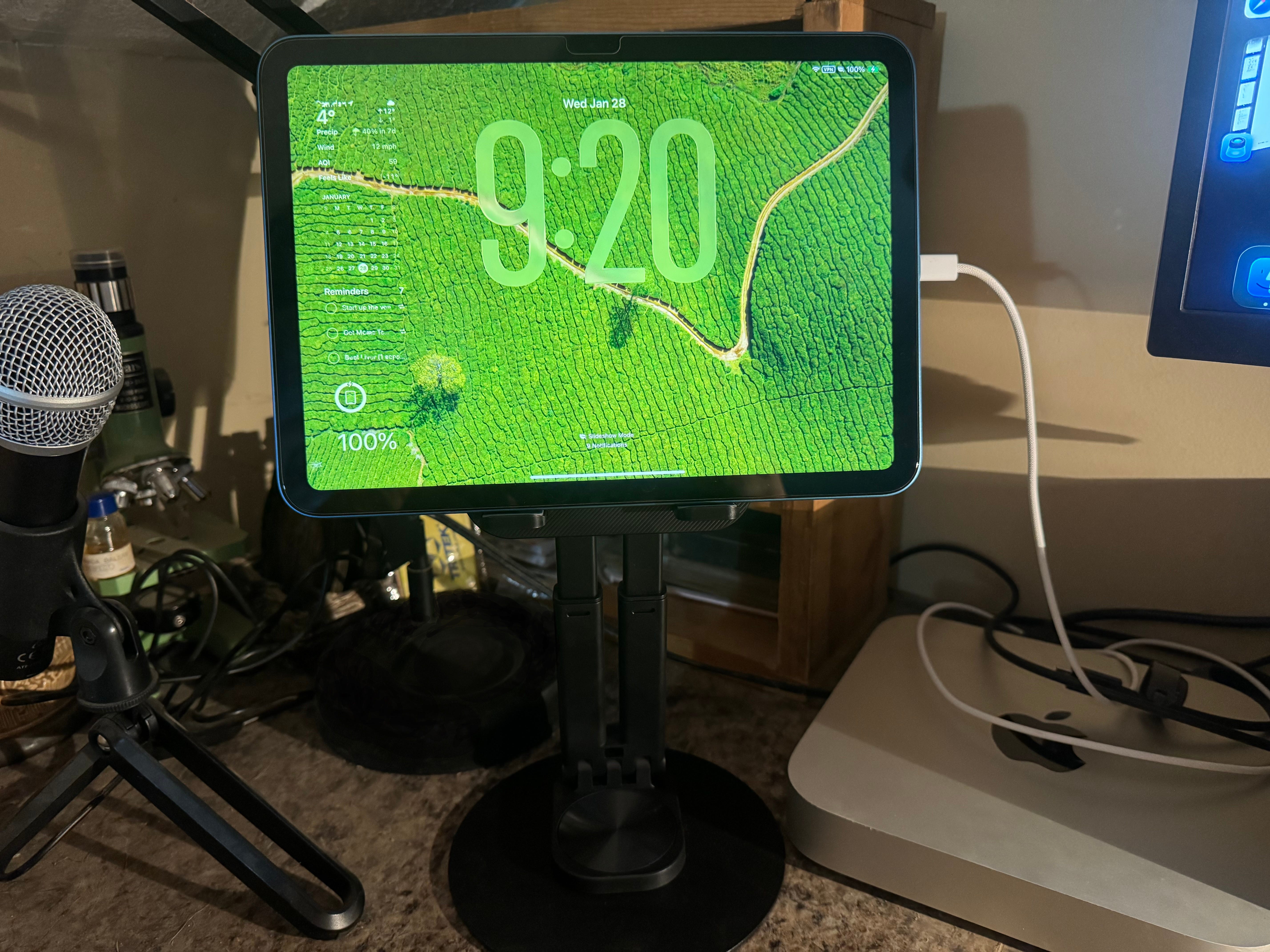
As I’ve mentioned before in earlier pieces, I now own an M4 iPad Pro I use as my daily driver, and an iPad 11th Gen I received for free. Since receiving the iPad 11th Gen, I’ve been looking for ways to further incorporate it into my workflow alongside my iPad Pro. For the past few months, I’ve had it propped on my desk to serve as a sort of smart display, but only more recently have I finally landed on the combination of settings I’m most happy with.
I’ve seen others use the iPad for similar setups as well, but figured I would document the way I did it differently, in large part thanks to iPadOS theming options that have dropped in the last few years, including one that’s new to iPadOS 26.
So without further ado, here’s how I set up my iPad smart display, perhaps it will be helpful for those in the same boat who want to get some additional use from an older iPad, or who have an extra iPad on hand.
A Note About Display “Burn-In”
Display burn-in is when remnants of a static image displayed for a long period of time on a display are still partially visible even after the image has been changed. This used to be a more common issue with display panel technology, which is why computers adopted screensavers, and hence why they are called “screensavers” in the first place. But most modern LCD panels (like the one found in the standard iPad, iPad Air, iPad Mini, or pre-M4 iPad Pros) are very resistant to image burn-in. This is why iPads can be safely used “always on” at kiosks and such. The chances of permanent image burn-in are exceedingly low.
Now OLED panels are different. OLED panels can actually be a bit more prone to image burn-in, which is why only newer iPhones support “Always-on-Display” mode. The OLED panels on such models employ technologies aimed at protecting the display from such burn-in.
You may see where I’m going with this. Due to OLED panels being more potentially prone to image burn-in, I would not advise anyone to use an M4 or M5 iPad Pro for this type of application. It could very well be safe, I don’t know for certain, but I don’t think the risk would be advisable.
That said, any standard LCD iPad, iPad Air, or Pre-M4 iPad Pro should likely be fine for acting as an “always-on” display. If you do have an M4 or newer iPad Pro that you would like to use for this kind of application, I would strongly suggest you look into a motion sensor that can be paired with a home automation system to wake said iPad only when you’re nearby.
Even with LCD iPads, burn-in can be a risk, but not a very high one. It’s exceedingly rare to encounter burn-in on such displays, and I will demonstrate some safeguards that can possibly help to further reduce the chances.
I just wanted to add that precaution, that way I don’t inadvertently steer anyone into damaging their device. That bit out of the way, here’s how I set it up.
Getting It Setup
The first step is to adjust your display auto-lock settings. These settings can be found in the Settings app under Display & Brightness. Select the “Auto-Lock” option, and set it to “Never”. This will mean that the iPad’s display will stay active unless you manually turn it off or put it into sleep mode.
The next thing I did was setting up a custom lock screen. This part you can set up however you want. For my setup, I sourced some stills Apple uses for some live wallpapers on the Mac from this helpful site. I placed them into a photo album in the Photos app, selected the Photo Shuffle option for the custom lock screen wallpaper, and selected “From Album”, and chose the album I created with the landscape wallpapers.
From there, I rescaled the clock to the new larger size option in iPadOS 26. There are several options available for theming it however you like, for my tastes, I stuck with the Liquid Glass style.
I proceeded to create another custom lock screen in addition to this one. You don’t have to do this, but I wanted a dimmer option for nighttime use, and so created one with a simple black background from the “Solid Color” option in the wallpaper options. I set up a different set of lock screen widgets in different placements (to add even further protection against burn-in), and added a green color to the text to mimic my iPhone’s StandBy Mode where I also used a similar green font.
With those custom lock screen designs in place, I proceeded to the next step, creating a couple of custom focus modes. These settings can be found in the Settings app under “Focus”, and new custom focus modes can be added via the plus symbol in the top right corner. I created one that I scheduled for 7:00 a.m. to 10:00 p.m. I assigned my first lock screen setup with the photo slide to this focus mode. I created another focus, and scheduled it for between 10:00 p.m. and 7:00 a.m. I assigned my “dark mode” lock screen to this focus. And since content is shifted around on the display with these two different lock screens, the chances of display burn-in are even lower. And since these lock screen designs are tied to focus modes, there are all kinds of possibilities for automation with these, I’m just barely scratching the surface. You could create as many different lock screen configurations as you want, and trigger them based on Siri Shortcuts automations for different use-cases. The options are nearly limitless.
You may be wondering how I get the lock screen to stay visible. It took me a while to figure that part out as well. Normally, when you open the lock screen, if you don’t sign in, it will just go back to sleep after a few seconds. But it dawned on me that Notification Center is the same as the lock screen. And when opening Notification Center from the iPadOS home screen, this will just stay open indefinitely with that auto-lock setting set to never. So I get to benefit from the clean and minimalist appearance of my lock screen with the photo shuffle and basic widgets that I want, rather than having to use the home screen with its more complex widgets and extra distractions. And when I do want to use those home screen widgets, they’re just a swipe away.
The iPad As a Smart Display
So far, I’ve noticed several benefits to this setup. For one, it displays useful information at a glance right there on my desk. I improved this setup further with an inexpensive stand that can be found here. With the stand, it raises the iPad closer to my monitor, for greater visibility.
The lock screen widget options are generally capable enough for my needs. I can even add widgets for my smart home accessories managed by third-party apps. The calendar lock screen widgets are useful for keeping on task. The iPad lock screen widgets offer everything I expect from a smart display. There’s even a lock screen widget for “Ask Alexa” if you’re using Alexa to manage your smart home devices rather than Siri or Apple Home.
There’s something uniquely pleasant about the iPad’s “smart display mode” vs the Alexa Echo Show in the other room. The Echo Show has a 15” display, which should make it more capable in theory. Yet a lot of that screen real estate is used for ads and suggestions for Amazon services. Where my iPad smart display is a clean and focused experience. No ads pestering me to try this or try that, no distractions, just beautiful landscape photos and at-a-glance information that I find useful.
Since the primary page for my smart display setup is the Notification Center, the full power of iPadOS is just a swipe away. Unlike the Echo Show, the iPad can run full iPad apps. So if I need or want to use an iPad-only app for something at my desk, and I don’t have my iPad Pro with me, I can use the iPad 11th Gen. As I noted in my previous review of the budget iPad, its performance has actually really surprised me, it even holds up pretty favorably for 3D work, though some of my larger projects did manage to crash some of my 3D apps on it due to more limited RAM and performance. But for normal productivity tasks, there’s plenty of power on tap, which can prove useful.
For smart home use, the four-way split view windowing mode introduced in iPadOS 26 is also nearly ideal for keeping some smart home apps and other utilities like Spotify and Weather in a four-way grid.
And with my Mac Mini’s Universal Control feature, I can even use the third-party mouse and keyboard I have at my desk to control the iPad! This makes it even more convenient to seamlessly switch from using the iPad as a passive smart display to using it to manage secondary tasks on the iPad’s display. All without lifting my hands from my keyboard and mouse.
Even when I dock my iPad Pro at my desk (which I’m doing far more often these days), if I move my mouse cursor off the Mac and onto my iPad 11th Gen first before switching HDMI inputs on my monitor, I can use the same keyboard and mouse to control my iPad 11th Gen. and my iPad Pro on both the iPad Pro’s native display and the desktop monitor. It would be nicer if Universal Control worked directly between iPads without a Mac needing to be involved in the equation, but at least it can work without the Mac having an active display connection, and since I already have a Mac Mini sitting at my desk, it does work out.
This really feels like the ideal way to put my spare iPad to use when I’m not using it as a tablet. And I can readily lift it from the stand and use it as an iPad when I wish.
Conclusion
Apple’s rumored to be releasing a new smart display device in the coming months, so it’s interesting to consider how this new device will compare against an iPad setup like this. I’m sure it will be better in certain areas as a smart home hub. But at the same time, an iPad can make for a very capable smart display. And most importantly, it can run full iPad apps, which I find greatly enhances its utility even for smart home display use. I will be interested in seeing if the new smart hub display Apple introduces this year will also run full apps like the iPad, or if it will be more like the Echo Show and Google Nest, with a more focused smart home dashboard functionality.
A more focused smart home experience can definitely have its strengths and benefits. But I have to say, something about the iPad smart display setup just appeals to me on several levels. And with the custom lock screen widgets, I feel it provides a great balance of focus most of the time, and then additional functionality when wanted. I will be interested to see where Apple’s new home hub device may be similar to the iPad, and where it may differ.
If you have a spare iPad on hand, it may be worth trying it out, and seeing how it works for you.